Components
-
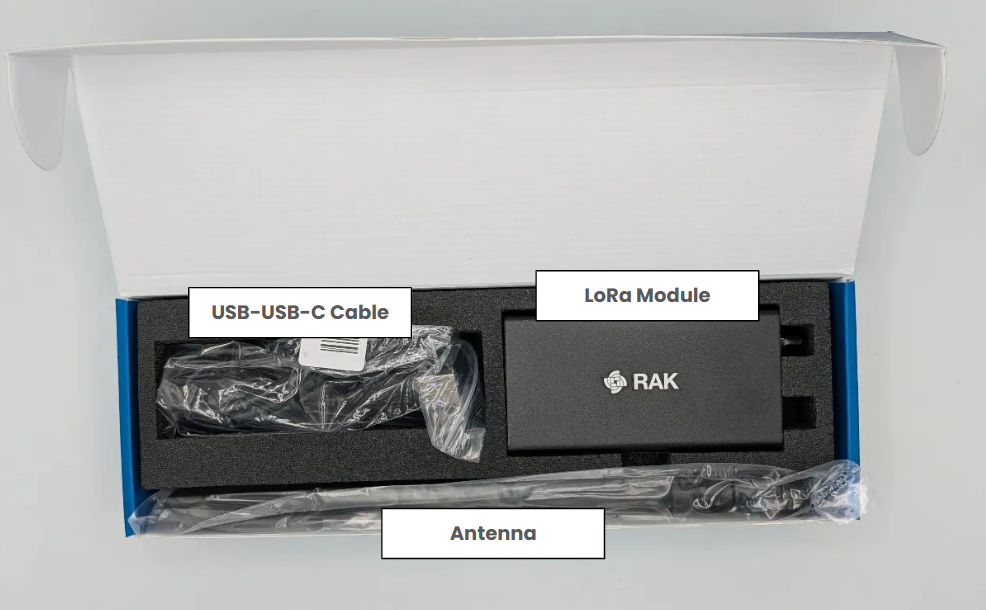
LoRa Module
-
Antenna
-
USB-USB-C Cable
-
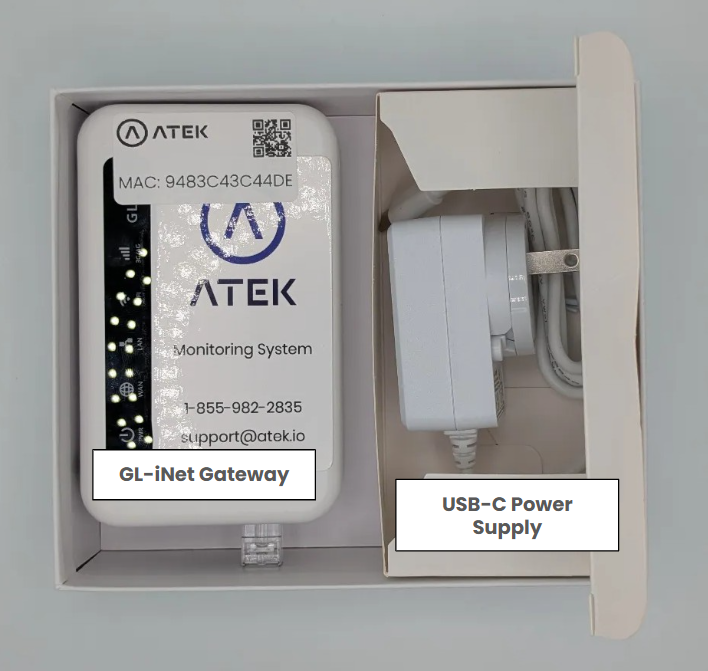
GL-iNet Gateway
-
USB-C Power Supply
Step 1: Assemble the LoRa Module with its Antenna
-
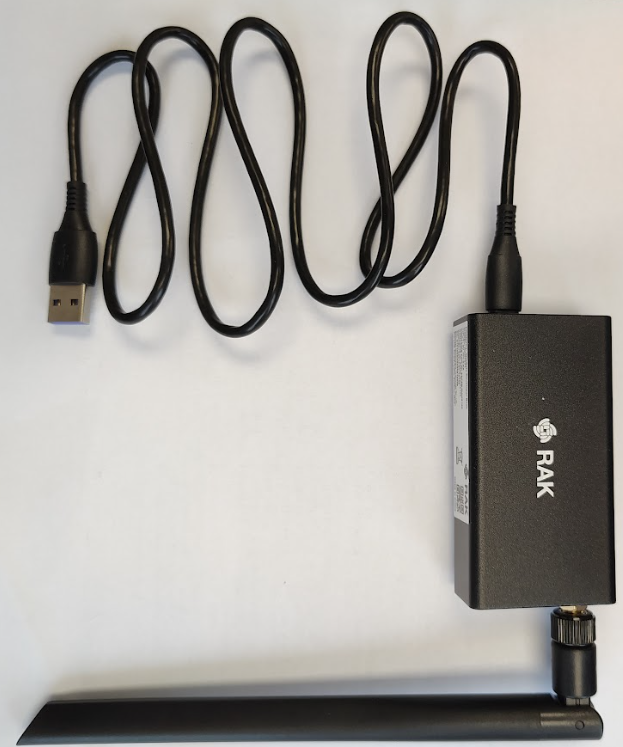
Attach the Antenna
- Screw the antenna onto the LoRa module. This step is essential to ensure the proper functioning of the signal.
-
Connect the USB-C Cable
- Plug the USB-C end of the cable into the LoRa module, leaving the other end (standard USB) free.
Step 2: Assemble the GL-iNet Gateway
-
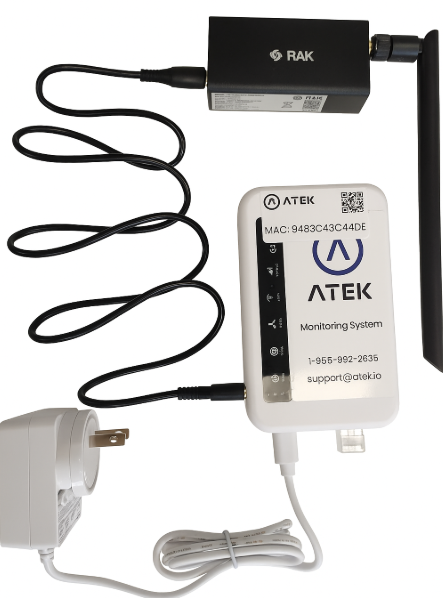
Connect the USB Cable
- Plug the free USB end (from the previous step) into the GL-iNet gateway.
-
Power the Gateway
-
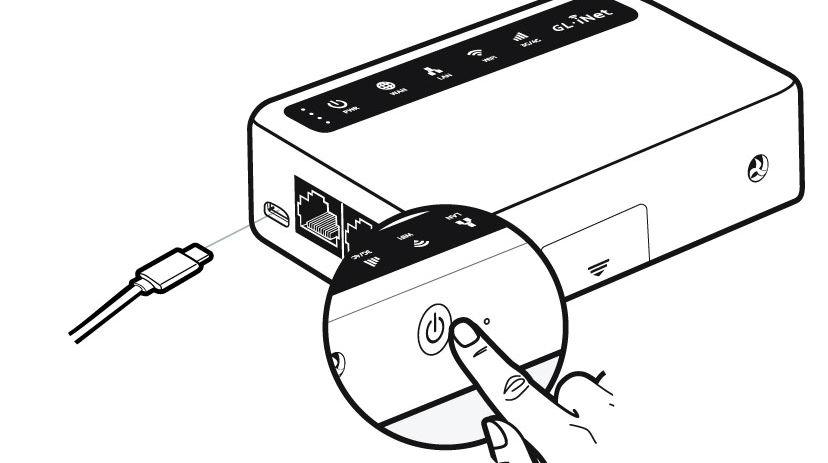
Plug the USB-C power cable into the dedicated port on the gateway to turn it on and recharge its built-in battery.
-
⚠️ Imperatively use a standard 5V / 2A power adapter. Any other adapter could cause malfunction.
-
-
Wait for All Status Lights
- The gateway takes about 3 minutes to fully start up.
Note:
- At any time, you can turn off the gateway by pressing the power button for 5 seconds to turn it off or on.
Precautions
-
-
- Never remove the antenna from the LoRa module when it is connected to the gateway via USB. This could damage the hardware.
-
Imported from Google Sites.